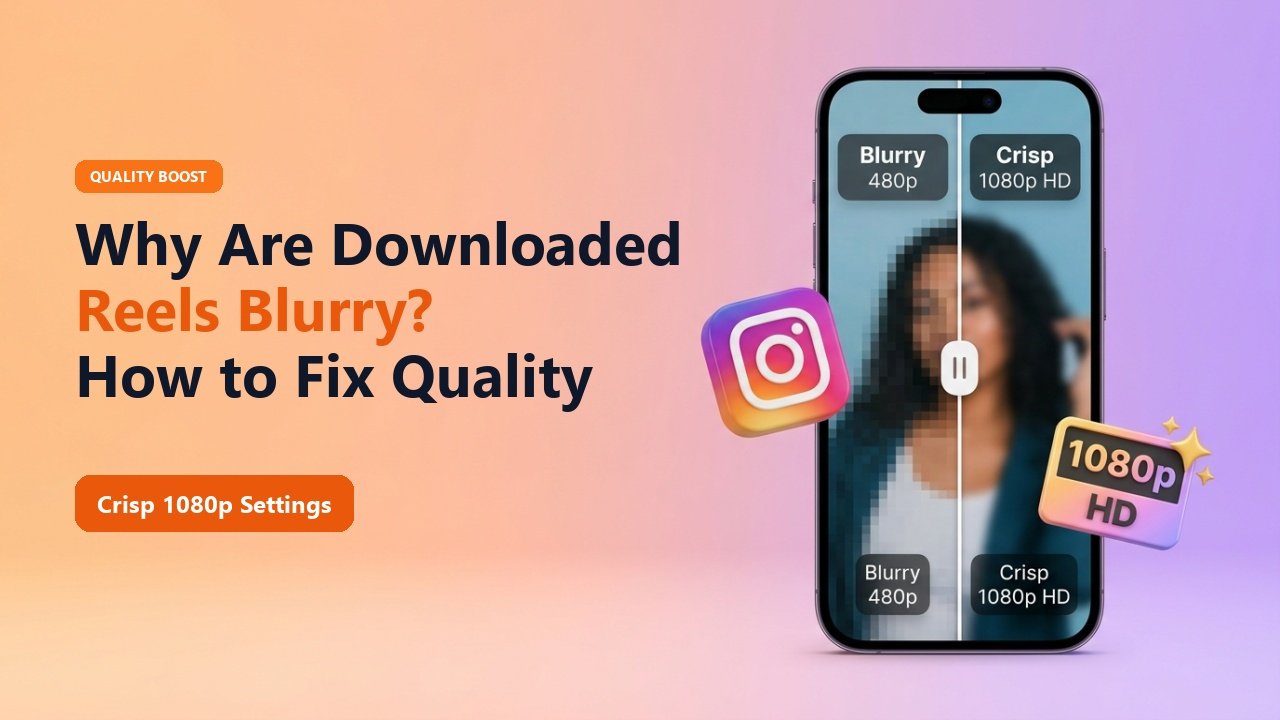
Key Takeaways & Summary
- ✓Blurry downloads usually stem from mobile screen recordings or aggressive client-side compression.
- ✓Instagram serves lower-resolution preview files (480p or 720p) over slower cellular connections.
- ✓TheSnapInsta requests the top-tier CDN master profile, guaranteeing full 1080p vertical clarity.
- ✓Learn how to verify actual video dimensions and bitrates on your device.
You watch a breathtaking cinematic Reel on Instagram—the colors are vivid, the motion is buttery smooth, and the details are razor-sharp. But when you download or screen record it to share with friends or use in an edit, the exported video looks like it was filmed on a potato: pixelated faces, muddy shadows, and jagged motion artifacts.
Why do downloaded Instagram Reels lose their quality, and how can you ensure you are saving the highest possible resolution? Here is the technical breakdown and the fix.
How Instagram's Adaptive Bitrate (ABR) System Works
Instagram uses dynamic adaptive bitrate streaming (DASH/HLS). When you watch a Reel in the app, Instagram measures your connection speed in real-time. If your mobile signal fluctuates, the app dynamically downgrades the stream from 1080p down to 720p, 540p, or even 480p to prevent buffering.
If you record your screen or use a rudimentary downloader while the stream is downgraded, you permanently capture that lower-resolution stream. TheSnapInsta solves this by querying Meta's manifest for the absolute highest resolution profile available on the server.
Mid-Article Responsive Ad (728x90 / Responsive)
Paste your in-article AdSense code in Admin > Ads
How to Get Maximum Sharpness on Every Download
Stop Screen Recording
Screen recordings are limited by display scaling and variable framerate compression. Always use direct URL downloading.
Use TheSnapInsta Uncompressed Engine
Paste the Reel link into TheSnapInsta. Our engine requests the master 1080x1920 stream encoded at up to 20 Mbps.
Check App "High Quality Uploads"
If you are downloading your own Reels, ensure "Upload at highest quality" is enabled in Instagram settings (Settings ➔ Account ➔ Data Usage).
📊 Resolution & Bitrate Comparison
| Method | Video Resolution | Video Bitrate | Visual Crispness |
|---|---|---|---|
| TheSnapInsta Master Fetch | 1080 x 1920 (Native) | 12 - 20 Mbps | ⭐ Crisp Studio Quality |
| In-App "Save to Camera Roll" | 720 x 1280 (Compressed) | 4 - 6 Mbps | ⭐ Moderate / Soft Edges |
| iOS / Android Screen Record | Display Scaled (Variable) | 3 - 5 Mbps | ⭐ Blurry / Pixelated |
Verify File Details
On Mac, press Cmd + I or on Windows right-click ➔ Properties ➔ Details to verify your downloaded file is a full 1080 x 1920 MP4.
Download Ultra-Sharp 1080p Reels
Say goodbye to pixelated downloads. Fetch the original master video file with TheSnapInsta.
❓ Frequently Asked Questions
Q: Can any downloader download Instagram Reels in 4K?
No. Instagram does not store or deliver Reels in native 4K (2160p). The maximum resolution hosted on Instagram CDN is 1080p (1080x1920). Anyone claiming 4K downloads is simply upscaling 1080p.
Q: Why does a Reel look crisp on desktop but blurry on phone?
Smartphones often render video previews in low-res until fully buffered. Once downloaded via TheSnapInsta, open the file directly in your camera roll for maximum sharpness.