Key Takeaways & Summary
- ✓Instagram automatically saves your personal posted stories into a private, hidden cloud archive.
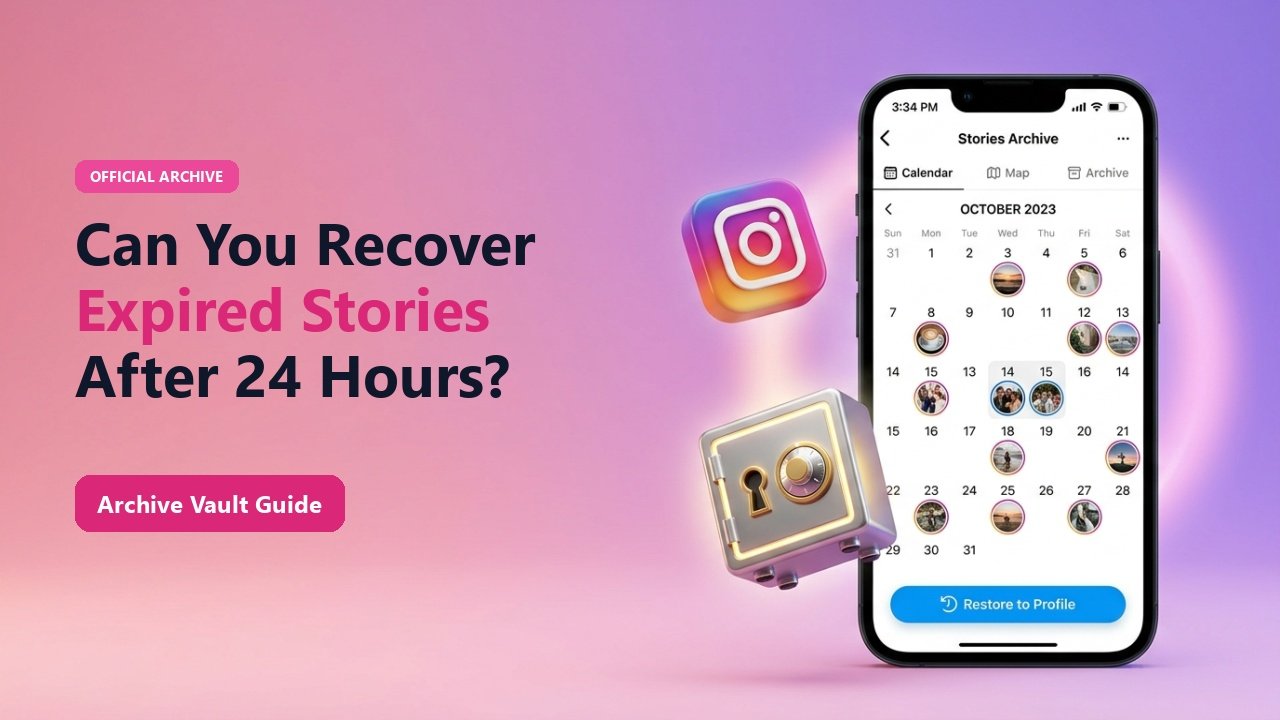
- ✓You can browse historical stories using an interactive Calendar View or World Map View.
- ✓Recovered stories can be re-shared as memories or exported directly into your camera roll.
- ✓How to verify that your automatic Story Archive toggle is switched on to prevent future memory loss.
You remember posting an incredible sunset video or a hilarious blooper story two years ago, but it has long vanished from your active profile. Can you still recover it, or is it permanently lost?
Unless you manually turned off account archiving, Instagram maintains a private, cloud-hosted repository of every single story you have ever posted since December 2017. Here is how to navigate the Instagram Stories Archive, view your timeline on a calendar, and export old stories to your device.
Understanding the Stories Archive Feature
In late 2017, Meta introduced the Stories Archive to alleviate users' fear of losing ephemeral moments. By default, this feature is enabled on all personal and creator accounts. Only you can view your personal archive; it is strictly private and hidden from followers and external web tools.
However, if you want to recover someone else's expired story, you can only do so if they added it to their public Highlights or if you saved it using TheSnapInsta before the 24-hour mark.
Mid-Article Responsive Ad (728x90 / Responsive)
Paste your in-article AdSense code in Admin > Ads
How to Access Your Story Archive on iOS & Android
1. Open Your Profile & Menu
Tap your profile picture in the bottom right, then tap the three horizontal lines (hamburger menu) in the top right.
2. Select "Archive"
Tap Archive. Tap the dropdown at the top of the screen and ensure "Stories Archive" is selected.
3. Explore by Grid, Calendar, or Map
Browse your historical stories in reverse chronological order, tap the Calendar tab to pick a specific date, or tap the Map tab to view location tags.
4. Save or Share
Open any old story, tap the three dots (More), and select "Save Video" or "Share as Post".
📊 Story Recovery Options Overview
| Story Type | Can It Be Recovered? | Where to Find It | Who Can Access It? |
|---|---|---|---|
| Your Own Expired Stories | YES (100%) | Instagram App ➔ Archive Menu | Private to You Only |
| Another User's Expired Story | Only if in Highlights | Profile Highlights Tab | Public via TheSnapInsta |
| Deleted Stories (<30 Days) | YES | Settings ➔ "Recently Deleted" | Private to You Only |
| Deleted Stories (>30 Days) | NO (Permanently Purged) | Unrecoverable from Meta servers | None |
Check This Setting Now
Ensure your archive is active! Go to Settings ➔ Privacy ➔ Story ➔ and verify that "Save story to archive" is toggled ON. If toggled off, your stories are permanently deleted at the 24-hour mark.
Never Lose a Story Again
Make it a habit to download valuable public stories and highlights using TheSnapInsta before they expire.
❓ Frequently Asked Questions
Q: Does the Stories Archive take up space on my phone?
No. The archive is hosted entirely on Meta's cloud servers. It consumes zero megabytes of your internal smartphone storage until you choose to download a file.
Q: If I delete an archived story, does it remove it from my highlights?
Yes. Pinned highlights reference the archived asset. Deleting an item from your archive automatically removes it from any highlight album containing it.